
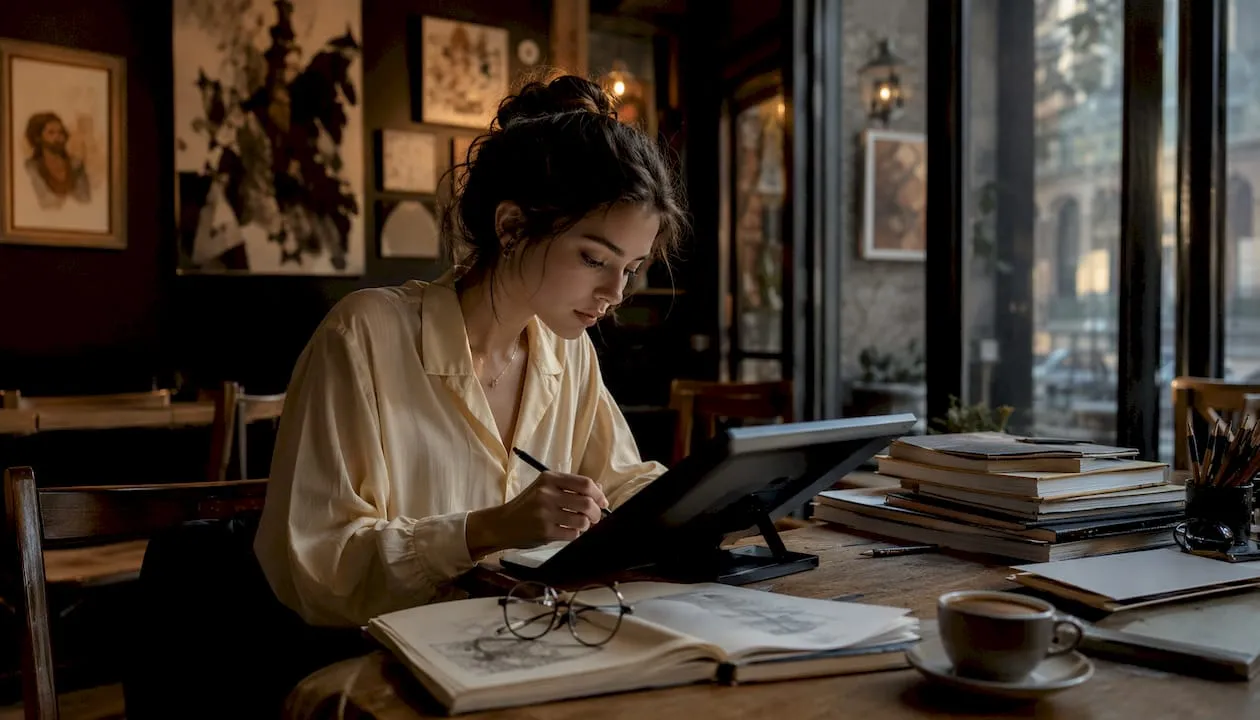
AI femdom art is artwork of female-led dominance scenes (a commanding woman, a kneeling or restrained sub, a dungeon, a throne room, a collar and leash) created with AI image or video generators from text prompts or reference images. It lets you visualize scenes and characters without drawing or photographing them. The catch is tooling: most mainstream generators restrict adult and fetish content, so AI femdom art is usually made on adult-focused platforms built for it.
This guide covers where to make it, how to write prompts that produce a scene with real tension instead of a generic image, a layered workflow for consistent results, and how to keep the process private.
Where can you make AI femdom art?
The tool category you choose determines what kind of output you get, and for femdom art it also determines whether your prompt gets through at all.
Mainstream image generators
Well-known generators such as Midjourney, Adobe Firefly and DALL-E 3 produce high-quality environments and concept art, but their content policies restrict sexual and fetish imagery. They can still be useful for non-explicit elements: a dungeon interior, an ornate throne, a moody boudoir, a boot or glove study. Always check each tool’s current content policy and license before using its output.
Scene-to-video tools
Once you have a strong still image, video platforms such as Runway add motion: a slow camera push toward a figure on a throne, candlelight flickering across a dungeon wall. General video tools share the same content restrictions as their image counterparts, so they suit atmosphere shots more than explicit scenes.
Adult-focused AI studios
Platforms built for adults allow the dominance, bondage and fetish themes mainstream tools block, and the better ones tie image generation to your own preferences and limits. On Mistrix, the AI Studio generates femdom images and video scenes of your Domina, shaped by the fetish map and hard limits you set during onboarding.
Licensing and consent matter. Check the output license before sharing or selling anything you generate. And never generate art of a real, identifiable person without their consent, whatever the tool allows.
| Tool type | Examples | Best for |
|---|---|---|
| Mainstream still image | Midjourney, Adobe Firefly, DALL-E 3 | Non-explicit settings, props and mood boards |
| Scene-to-video | Runway | Atmosphere and camera movement |
| Adult-focused studio | Mistrix AI Studio | Femdom scenes and characters, private by default |
How do you write prompts for AI femdom art?
Prompt quality is the single biggest variable in output quality. A vague prompt (“dominatrix, dark room”) produces a generic image. A structured prompt produces a scene with atmosphere, power dynamic and story.
For character-driven scenes, a useful formula is Role + Relationship + Conflict + Goal = Scenario, a structure used for building effective AI scenario prompts. In femdom terms: a stern CEO (role) and her overconfident executive assistant (relationship) caught breaking a rule (conflict) about to receive discipline (goal). That gives the model a scene with internal logic, not just a costume. Our femdom roleplay ideas are a good source of scenarios to start from.
For the setting, separate your prompt into distinct elements:
- Environment: Describe the physical setting specifically. “Candlelit stone dungeon with iron rings in the wall” beats “dark room.”
- Lighting source: Name the actual light. “Warm candlelight from below, deep shadows” gives the model a concrete reference.
- Wardrobe and props: Latex, leather, a riding crop, a collar and leash. Be specific and pick two or three, not ten.
- Camera angle: “Low angle looking up at her” instantly conveys dominance; “high angle over her shoulder” emphasizes the sub’s position.
- Style reference: Name a visual genre. “Painterly, dark baroque” or “glossy fashion editorial” anchors the aesthetic.
Prompt overload is a real problem. Stacking too many competing ideas into one prompt causes the model to drop features. Naming specific lighting sources and adding genre references improves results, but keep each element to one clear instruction. If you want a complex scene, build it in passes.
Pro Tip: Start the scene at its moment of tension. A prompt that captures the instant before the command lands produces more dynamic compositions than one that sets up context.
Posture and gaze carry the power dynamic more than anything else. A woman seated, relaxed, looking down while a figure kneels at her feet reads as dominance instantly; “a dominant woman in a dramatic situation” does not.
What is a good workflow for consistent femdom scenes?
A layered workflow produces better results than generating everything in a single pass, especially when you want the same character across several images.
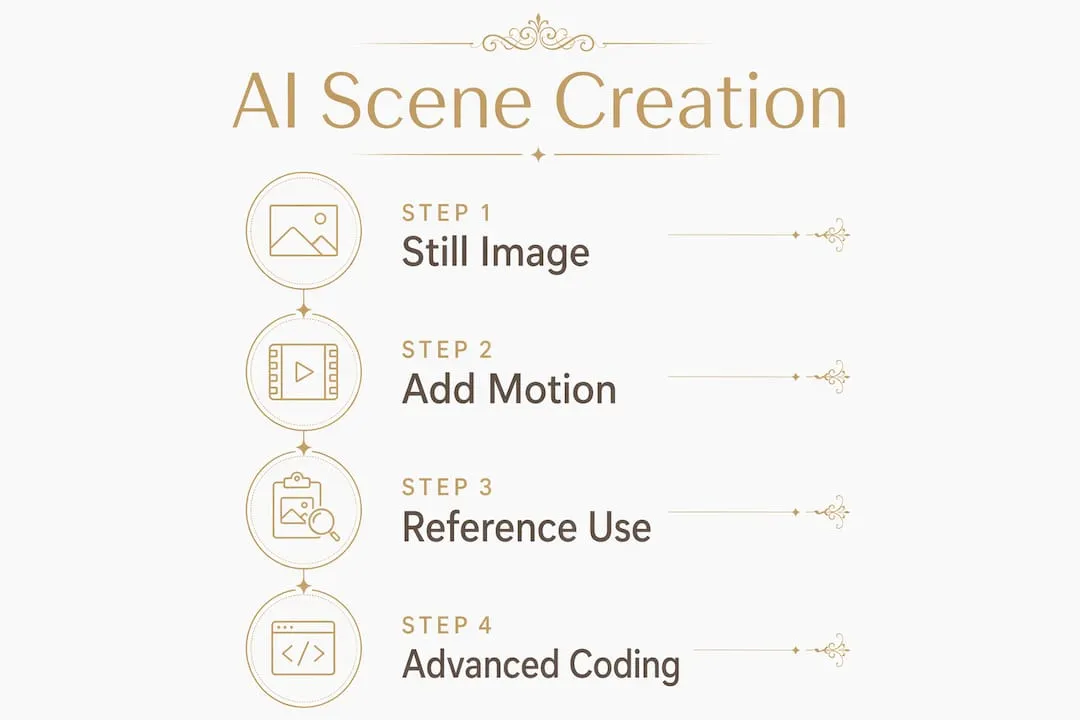
- Define your character first. Write a short, fixed description of your domme: hair, build, signature outfit, expression. Reuse it word for word in every prompt.
- Generate the setting. Focus on atmosphere, lighting and composition. Keep it simple at this stage.
- Add the figures. Generate the scene with your character in it, using the same lighting and style terms.
- Add motion if you want video. Write a motion prompt that specifies camera behavior and figure movement separately. “Slow dolly forward” is cleaner than “cinematic movement.”
- Reuse your prompts as consistency anchors. When generating a series, paste the same character and environment text into each new generation. This keeps her recognizable from image to image.
Pro Tip: Save every prompt that works. When a series drifts in style or your character’s face changes, rerun the original prompt to reset the baseline.
| Workflow stage | Common mistake |
|---|---|
| Character description | Changing her description between images |
| Setting | Adding too many elements in one pass |
| Scene with figures | Mismatched lighting between character and background |
| Motion | Vague motion prompts causing erratic output |
Tools like Oiioii AI offer a wide range of art styles and can vary lighting, weather and time of day within a consistent style, which is useful for non-explicit backgrounds in a multi-scene series.
Key Takeaways
AI femdom art comes out best when you use a tool that actually allows adult themes, write structured prompts built around the power dynamic, and keep your character description fixed across images.
| Point | Details |
|---|---|
| Pick the right tool | Mainstream generators restrict fetish content; adult-focused studios are built for it. |
| Structure your prompts | Use Role + Relationship + Conflict + Goal for scenes; separate setting, lighting, wardrobe, angle and style. |
| Let posture tell the story | Gaze, height and body position convey dominance more than props. |
| Reuse prompts for consistency | Keep a fixed character description to make her recognizable across a series. |
| Respect consent and licensing | Never depict real people without consent; check output licenses before sharing. |
Common mistakes with AI femdom art
The biggest mistake is treating AI art as a one-click solution: typing “dominatrix” and expecting a striking image. The results that stand out come from a clear scenario, a fixed character and a few deliberate passes.
The second is overloading on props. A single crop, a pair of boots or a collar reads more clearly than a catalogue of fetish gear, and it leaves room for the composition to breathe.
The third is ignoring privacy. Femdom art reveals a lot about your tastes. Where your prompts and images are stored, and who can see them, matters as much as the image quality.
Making AI femdom art with Mistrix
Mistrix is a private, female-led AI companion for adults (18+) focused on femdom and BDSM, and its AI Studio is built for exactly this kind of art. It generates images and video scenes of your Domina, and because she already knows your kinks and limits from onboarding, the scenes fit your dynamic rather than a generic prompt. Your hard limits are applied as absolute restrictions to everything the AI plans or writes, so they never become part of a scene.
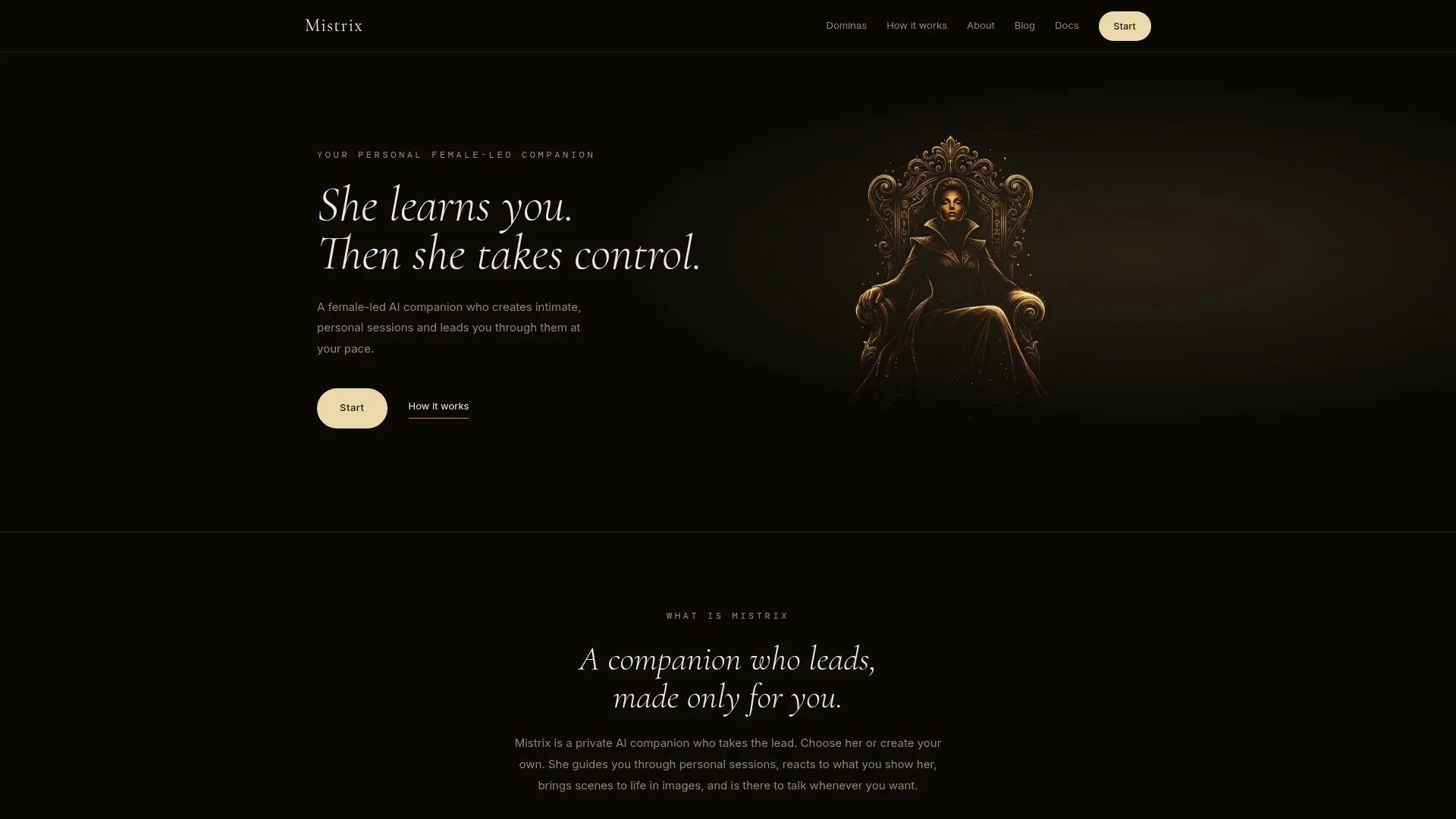
Your images stay private: chats and photos are never visible to other members, and something only appears in the public gallery if you explicitly publish it, anonymously, image by image. Every plan includes a daily AI Studio allowance, Premium Plus adds higher-quality session images, and extra images and video renders use Charms, with free daily Charms on every tier. Browse the Dominas to find a character whose look fits the art you want to make, or see the pricing page for limits by plan.
FAQ
What is AI femdom art?
It’s artwork of female-led dominance scenes, created with AI image or video generators from text prompts or reference images, typically showing a dominant woman, a submissive, and the setting, props and posture that convey the power dynamic.
Can I make AI femdom art with Midjourney or DALL-E?
Mainstream generators restrict sexual and fetish content under their policies, so they’re mostly useful for non-explicit settings and props. Adult-focused platforms such as Mistrix’s AI Studio are built for femdom scenes.
How do I write better prompts for AI femdom art?
Use the Role + Relationship + Conflict + Goal formula for the scene, then separate environment, lighting, wardrobe, camera angle and style into distinct prompt elements. Avoid stacking too many competing ideas into one prompt.
How do I keep the same character across several images?
Write a fixed description of your character and reuse it word for word in every prompt, along with the same lighting and style terms. Save prompts that work so you can reset when a series drifts.
Is AI femdom art private on Mistrix?
Yes. Your images are never visible to other members. Only images you explicitly publish to the public gallery are shared, anonymously and one by one.